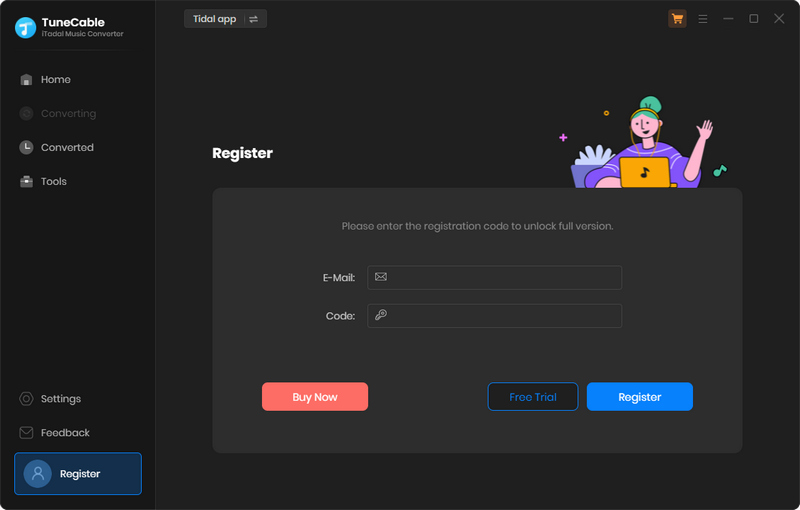
(1) Launch TuneCable iTadal Music Converter, and go to the lower left corner to select the "Register" section. You will see a registration box. You can also click on the Menu  icon and select "Register" to get the interface.
(2) Fill in the two blanks with your registration Email and license code that you have received from the email. Then click "Register" to register for the program.
If registration fails, please try the following steps:
(1) Please confirm that the currently installed program matches the product and version you purchased.
(2) Please check that the registration code is exactly the same as the one you received in the email after purchase, and avoid any extra spaces or typing errors.
(3) One registration code can only be used on one device. If it has already been activated on another device, please log out or deactivate the previous device first, then try to reactivate it on the current device.
(4) If you have followed all the instructions but still get the failed message, please contact our support team via support@tunecable.com for help.
You are using the trial version that only allows you to convert the first 1 minute song for sample testing. You can go to this order page to unlock this restriction after purchasing a license.
"Intelligent Mode" means TuneCable automatically switches between downloading music from Tidal app / web player or YouTube based on your network condition.
(1) In lower left of TuneCabe main interface, access "Settings".
(2) Under "Output File Name", retain only "Playlist Index" and "Title".
(3) Select "Playlist" in the "Output Organized" setting.
Go to the "Settings" interface TuneCable. Then choose 'Recommended' from Output Format and 'Record Mode' from Conversion Mode in Settings to download Tidal songs with the original quality in the original formats.
The converted files are stored in the output folder on your computer. Click the "History" section of the TuneCable interface, then click the folder icon behind a song to locate the converted song.
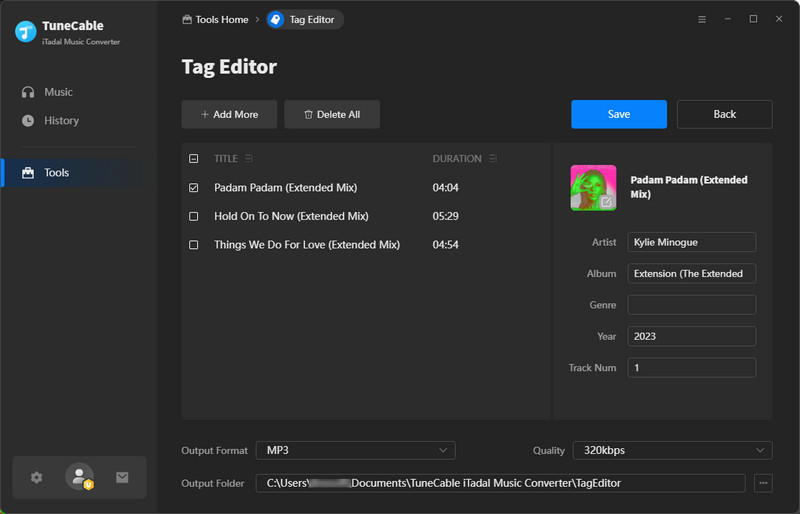
TuneCable iTadal Music Converter offers you the tool Tag Edit, or ID3 tag editor, namely, is the easy-to-use function that allows you to change the tags or add ID3 tags to your local audio files or the converted Tidal music songs.
Step 1. Click on Tag Edit from Tools. Click "Add Music" to import local audio files. Also, you are allowed to drag and drop audio to TuneCable from Mac directly. If you would like to make changes to the converted Tidal songs, go to the "History" section, select the songs, and choose "Edit Tag" after clicking on the four-square function icon.
Step 2. TuneCable will smartly read and display the tags of the audio. You can change the Artwork, Title, Artist, Album, Genre, Year, and Track Num of each track. Click "Save to Source Files" or "Save as New Files" to take effect immediately.
Go to the "Settings" interface of TuneCable. Select "None" in the "Output Organized" setting.
If you fail to convert music, you can try the following methods to troubleshoot and resolve the issue:
(1) Update to the latest version: Please check if you are using the latest version of TuneCable and music app. If not, please download the latest version through the download center. Or go to "Menu" > "Check for updates".
(2) Switch to another source: Please go to the top bar and choose to download from the app or web player. Switch to another source and try downloading again.
(3) Please go to the "Settings" tab and go to "Conversion Mode". Then try different conversion modes.
(4) Clear cache: Please go to the top right, click the "Menu" and choose "Clear Cache". Alternatively, completely delete the program cache by following these steps:
- Open the path:
C:\Users\USERNAME\AppData\Roaming\ - Locate the corresponding program folder, for example,
TuneCable iTadal Music Converter. - Delete the program folder.
- Restart the program and try again.
- Open Finder.
- Click Go → Go to Folder… in the top menu bar, or simply press Command + Shift + G.
- Enter the path:
~/Library/Application Support/, and locate the corresponding program folder, for example,TuneCable iTadal Music Converter. - Delete the program folder, then restart the program.
Windows:
Mac:
(5) Check account status: Please check whether your music account can log in normally in other browsers and see whether music plays normally under your account in the music app or web player. In some cases, you also need to confirm that your account is in an active subscription state.
(6) Disconnect Bluetooth/other devices: If you are using a Bluetooth or other device connected to your computer, please disconnect it.
(7) Check IP address and regional restrictions: Turn off or switch your VPN, and try downloading again.
(8) Technical support: If the solutions above are not effective, please email support@tunecable.com for further help.
(1) Please go to the program menu, and click "Clear cache". Then reopen the program for a try.
(2) Please go to the program menu, and click "Open log file". Then manually navigate to its parent directory and delete all files under the Tidabie Tidal Music Converter folder. Then reopen the program for a try.
(3) Please contact our support team at support@tunecable.com via e-mail for further help.
TuneCable supports downloading Hi-Res music from Tidal. Four conditions need to be met at the same time before you can download Hi-Res music:
(1) Become a Tidal Individual or Tidal Family subscriber.
(2) Select TIDAL app to work with TuneCable on the primary page.
(3) Switch the streaming quality to MAX in the Tidal app.
(4) Please make sure you've added the Tidal songs with the "Hi-Res" icons.
(5) Go to the "Settings" tab on TuneCable, set "Record Mode" from Conversion Mode setting, and then set "Recommended" from Output Format setting. Choosing "Recommended" means you want to download songs from Tidal in the original quality and format. It will be the best choice for lossless conversion.
(6) Get an external DAC or a HiRes audio player to enhance your listening experience.
You've selected either "Intelligent Mode" or "YouTube Mode" for music conversion. "YouTube Mode" gets music from YouTube. "Intelligent Mode" switches sources based on network, falling back to YouTube if the original source is unavailable. For downloading only from the original source, please change "Conversion Mode" to "Record Mode".
Upon choosing a lossless output format (WAV, FLAC, AIFF, or ALAC), the Bit Rate option becomes inactive, reflecting the fact that these formats automatically encode audio at their optimal, uncompressed bit rate, thereby ensuring maximum audio quality without the need for manual bit rate adjustment.
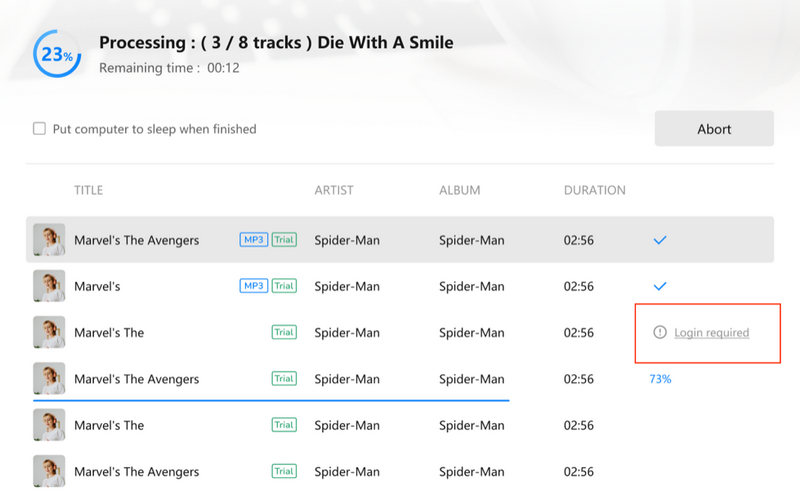
This prompt indicates that the song requires a logged-in account on the source platform for conversion. Please return to the Tidal web player window, click the "Log In" button (typically in the top-right corner), complete the login process, and then add the song to convert again.
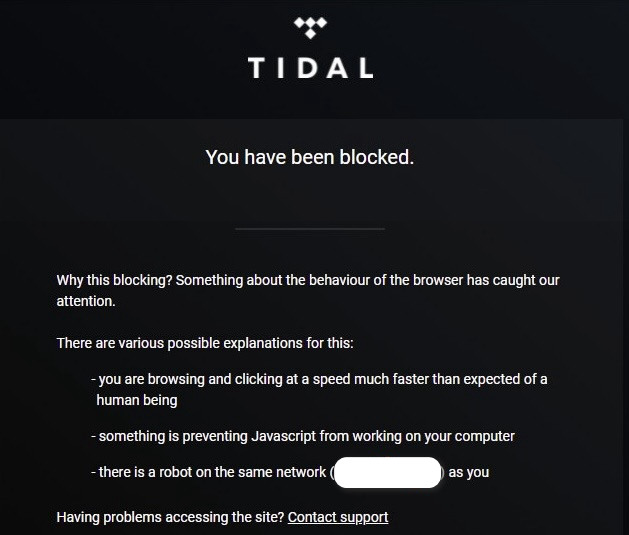
If you encounter this message while logging into the Tidal web player via TuneCable, please rest assured that this is Tidal’s standard robot verification process and does not indicate any issue with your account. To proceed, simply scroll to the bottom of the page and complete the verification as prompted.
Should the verification module fail to appear, we recommend the following troubleshooting steps:
(1) Navigate to TuneCable "Menu" > "Clear Cache" to clear the program cache.
(2) Reinstall the app to resolve any potential loading issues.
If the problem persists, please email support@tunecable.com for further help.
Should you encounter any problem that couldn't be solved by the solutions above, please contact our support team at support@tunecable.com via e-mail for further help.
