(1) Run TuneCable Spotify Downloader and select the "Register" tab in the lower left corner, you will get the registration interface.
(2) Copy and paste the registration Email and Code you have received from the email into the registration dialog. Then click the "Register" button.
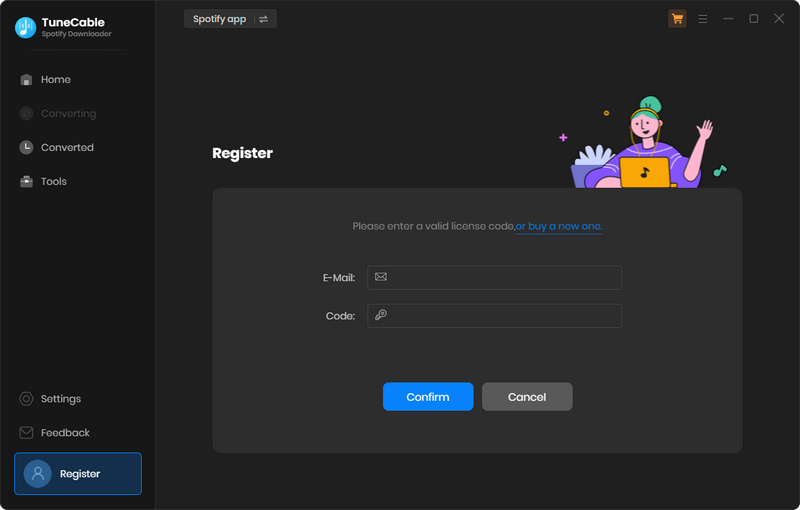
If registration fails, please try the following steps:
(1) Please confirm that the currently installed program matches the product and version you purchased.
(2) Please check that the registration code is exactly the same as the one you received in the email after purchase, and avoid any extra spaces or typing errors.
(3) One registration code can only be used on one device. If it has already been activated on another device, please log out or deactivate the previous device first, then try to reactivate it on the current device.
(4) If you have followed all the instructions but still get the failed message, please contact our support team via support@tunecable.com for help.
TuneCable trial version only allows trial users to convert the first 1 minute of each song for sample testing. To unlock this restriction, please purchase a license.
TuneCable Spotify Downloader (Win/Mac version) offers MP3, AAC, WAV, FLAC, AIFF, and ALAC format for outputting. TuneCable Spotify Downloader (Android version) offers MP3, AAC, WAV, and FLAC format for outputting.
Intelligent Mode means TuneCable will automatically switch conversion modes depending on your internet connection. If your selected music source is no longer available on the original platform, TuneCable will switch to YouTube Mode, which downloads alternative music from YouTube. Record Mode downloads music from the original source only and keeps the original format and quality, which is best for users who want the highest quality.
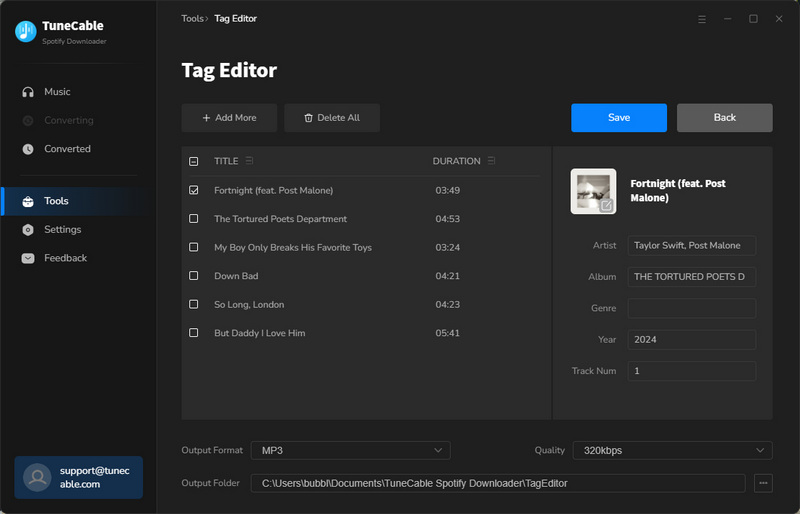
(1) Navigate to the Tag Edit tool on the Tools interface. Drag and drop your local audio files to TuneCable. The "Add Music" button also allows you to upload your local files.
(2) TuneCable will show the tags on the files. You can change Artwork, Title, Artist, Album, Genre, Year, Track Num and more according to your need. Then click "Save to Source Files" or "Save as New Files" to apply all changes.
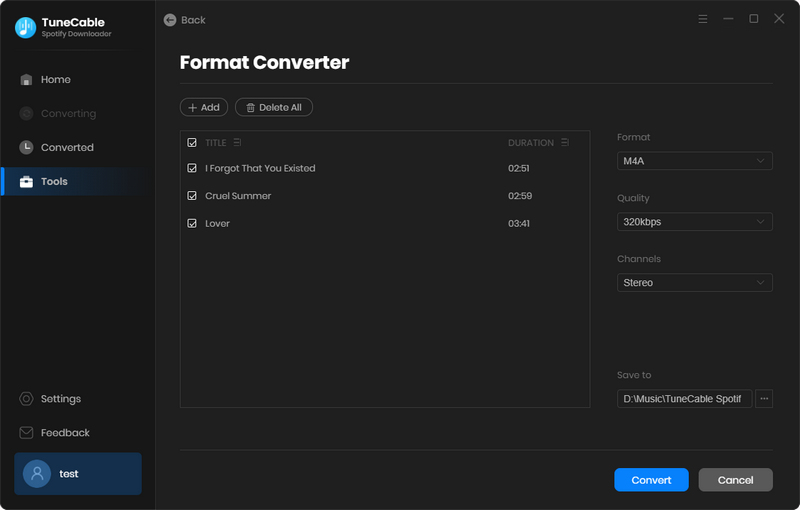
TuneCable Spotify Downloader provides a tool called "Format Converter" which supports converting local DRM-free music files to MP3, M4A, WAV, FLAC, OGG, and AIFF formats.
(1) From the "Tools" page, choose the Format Converter option. You can add music to the interface by clicking the "+Add" button or by manually dragging and dropping them. MP3, M4A, M4B, WAV, FLAC, OGG, AIFF, and M4R are among the supported output formats.
(2) Select the output format, sound quality (128kbps, 256kbps, or 320kbps), channel (Mono or Stereo), and output path. Then click "Convert" to start the conversion.
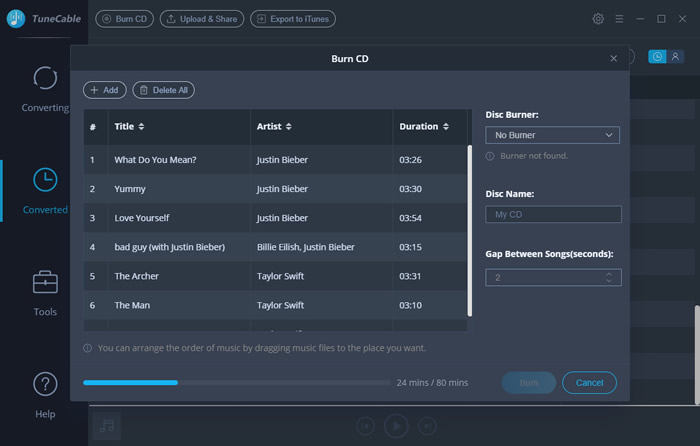
The "Burn CD" tool in TuneCable Spotify Downloader allows you to burn your songs to CD directly without needing other programs. You can access this tool from the "Tools" module. You can also go to the "History" module, select the icon with four squares above the songs, and choose the "Burn CD" option.
(1) Once you have entered the Burn CD tool, you can drag and drop your favorite songs into the interface or click the "Add Music" button to add them. If you access the tool from "History", select the downloaded songs first and then choose the "Burn CD" tool, it will proceed to the next step.
(2) Then you can customize the disc name as well as the gap between songs. Please note that you can add a maximum of 80 minutes of songs in total. Click on "Burn" to start the process.
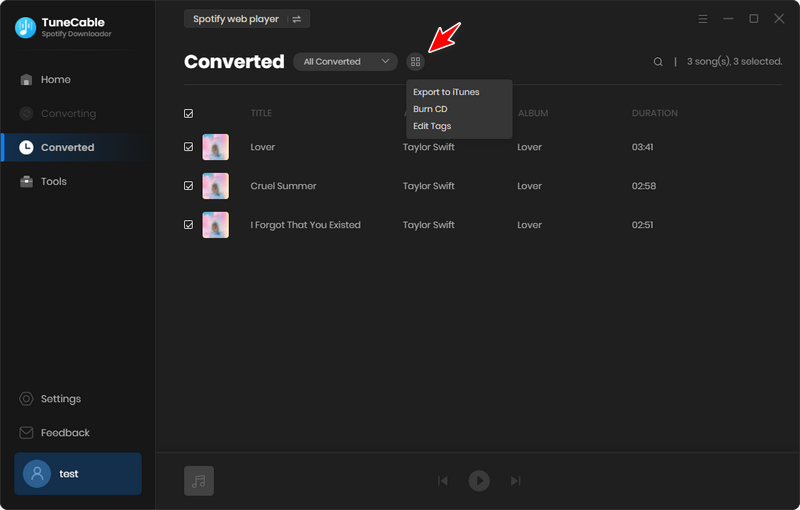
After the conversion is completed, head to the "History" tab, select the target songs and click on the square menu icon then select the option of "Export to iTunes". On the popup, you can name the playlist and then select "Start exporting".
If your Spotify account happens to be suspended, we have provided a detailed explanation of this issue on the relevant page, which we recommend you review first.
To help you address this situation, we offer the following solutions:
(1) Download without login: Our program currently supports downloading most songs without requiring a Spotify account (though a small number of tracks may still need login verification).
(2) Use a temporary account: If needed, you can also create a free Spotify account for temporary use as an alternative.
(3) Library backup and restore: We have added a backup/restore feature for Spotify libraries, allowing you to easily transfer your existing playlists and preference settings to a new Spotify account (please refer to this guide for detailed instructions).
For steps on how to recover a suspended Spotify account, please check this page.
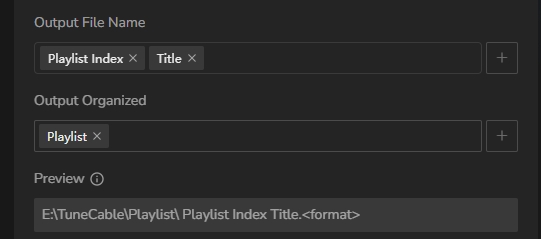
(1) In lower left of TuneCabe main interface, access "Settings".
(2) Under "Output File Name", retain only "Playlist Index" and "Title".
(3) Select "Playlist" in the "Output Organized" setting.
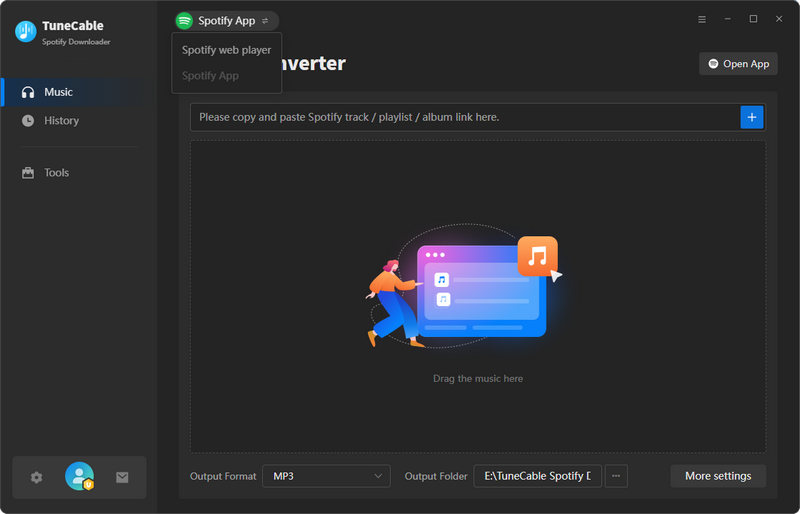
(1) Switch to "Spotify App" and click "Open App" in TuneCable.
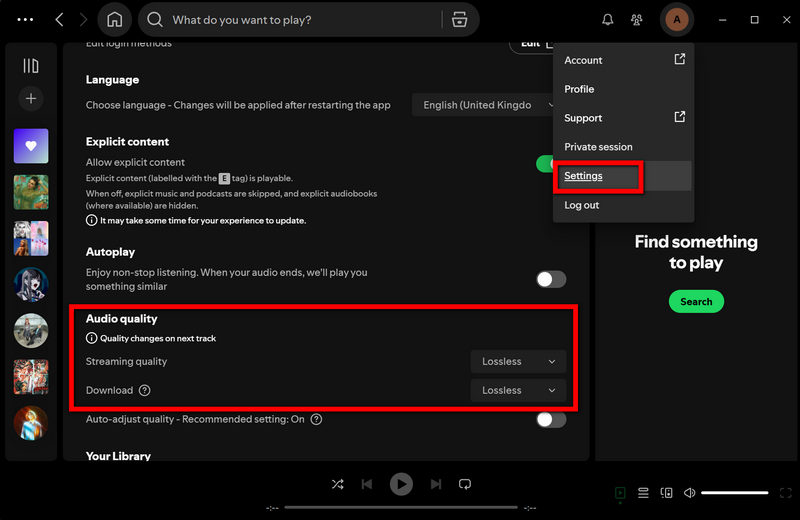
(2) Make sure to log in to your Spotify Premium account within the Spotify app and enable "Lossless" quality in the "Settings" section.
(3) Choose "Record Mode" as the conversion mode and select "Recommended" as the output format in TuneCable.
TuneCable will export the songs with the Lossless audio quality and format kept.
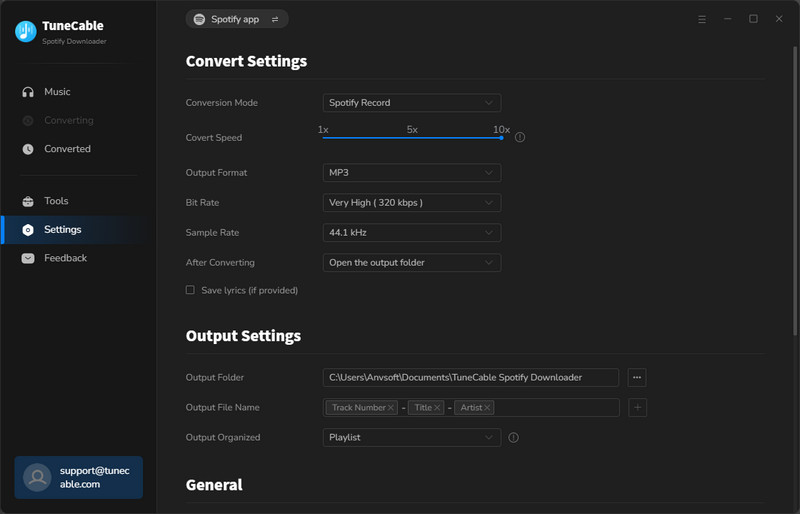
If you fail to convert music, you can try the following methods to troubleshoot and resolve the issue:
(1) Update to the latest version: Please check if you are using the latest version of TuneCable and music app. If not, please download the latest version through the download center. Or go to "Menu" > "Check for updates".
(2) Switch to another source: Please go to the top bar and choose to download from the app or web player. Switch to another source and try downloading again.
(3) Please go to the "Settings" tab and go to "Conversion Mode". Then try different conversion modes.
(4) Clear cache: Please go to the top right, click the "Menu" and choose "Clear Cache". Alternatively, completely delete the program cache by following these steps:
- Open the path:
C:\Users\USERNAME\AppData\Roaming\ - Locate the corresponding program folder, for example,
TuneCable Spotify Downloader. - Delete the program folder.
- Restart the program and try again.
- Open Finder.
- Click Go → Go to Folder… in the top menu bar, or simply press Command + Shift + G.
- Enter the path:
~/Library/Application Support/, and locate the corresponding program folder, for example,TuneCable Spotify Downloader. - Delete the program folder, then restart the program.
Windows:
Mac:
(5) Check account status: Please check whether your music account can log in normally in other browsers and see whether music plays normally under your account in the music app or web player. In some cases, you also need to confirm that your account is in an active subscription state.
(6) Disconnect Bluetooth/other devices: If you are using a Bluetooth or other device connected to your computer, please disconnect it.
(7) Check IP address and regional restrictions: Turn off or switch your VPN, and try downloading again.
(8) Technical support: If the solutions above are not effective, please email support@tunecable.com for further help.
You've selected either "Intelligent Mode" or "YouTube Mode" for music conversion. "YouTube Mode" gets music from YouTube. "Intelligent Mode" switches sources based on network, falling back to YouTube if the original source is unavailable. For downloading only from the original source, please change "Conversion Mode" to "Record Mode".
This is most likely a compatibility issue with macOS itself. macOS has no native support for FLAC. While third-party apps like VLC or IINA can play FLAC files, Finder and QuickLook cannot read FLAC's embedded cover art because Apple designed macOS to favor its own ALAC format instead. If you preview the same downloaded file on a Windows computer, the cover art should appear.
To check whether the cover art was saved, you can view the downloaded files directly in the program's History interface. If the cover art displays there, the issue is specific to macOS. We recommend using a different compatible media player to view the cover art, or switching the output format to ALAC (the Mac-compatible alternative to FLAC).
YES. For more details about how to use TuneCable Spotify Downloader for Android, you may refer to this tutorial.
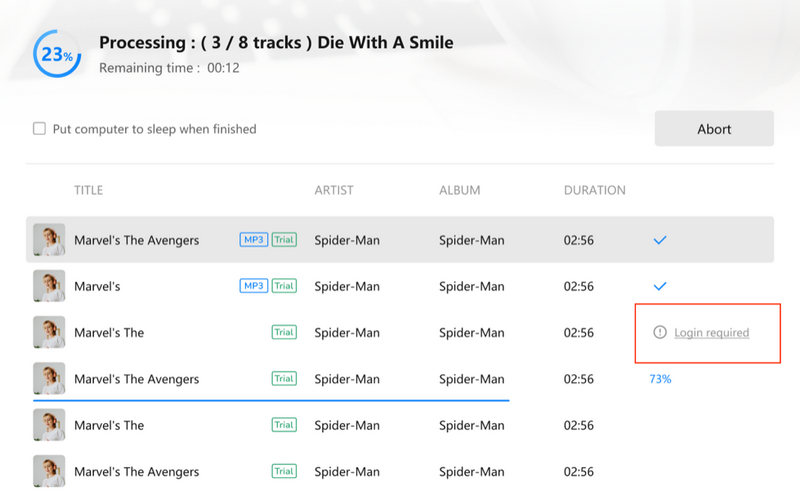
This prompt indicates that the song requires you to be logged into an account on the source platform for conversion. Please return to the Spotify web player window, click the "Log In" button (typically in the top-right corner), complete the login process, and then add the song to convert again.
Please contact us at support@tunecable.com. Tell us what problem you are encountering and provide us with detailed information such as your computer OS version, Spotify version, and program log files for analysis. You can also submit your problem through the program's 'Feedback' button (located in the lower-left corner with a small email icon) and attach the log files.
