
TuneCable Spotify Downloader
 >
How To >
Spotify Music Tips >
>
How To >
Spotify Music Tips >
Transfer music from one stream service to another different platform can be a stressful experience. You have to hope your transfer without a hiccup, move all your music playlists on Spotify to iTunes. No worries, today we will introduce 2 feasible solutions.
Firstly, one convenient method is to use a playlist conversion tool to transfer your Spotify playlist to other platforms like Apple Music. After the playlist transfer is complete, you can load all the tracks from the transferred Spotify playlist in the iTunes app. PlaylistGo is the precise tool to complete this task. In just a few clicks, you can seamlessly move your playlists between all major streaming services—including Spotify, Apple Music, Amazon Music, Tidal, Deezer, and YouTube Music. Click the download button below and follow the simple steps to transfer your Spotify playlists effortlessly.
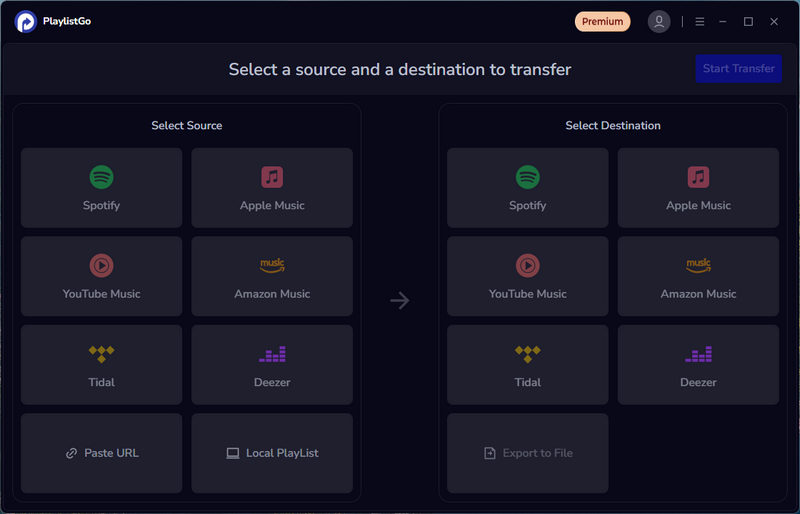
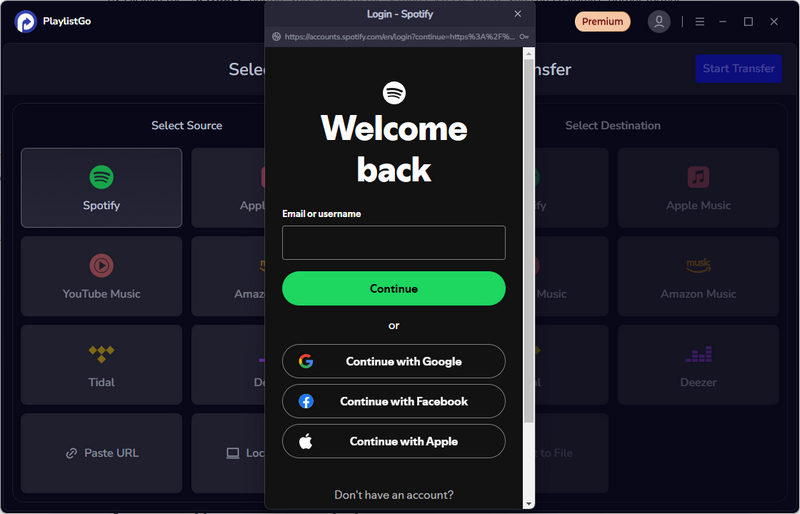
Step 1 Launch the program and select Spotify as the source. Log into your Spotify account to authorize access.
Step 2 Choose the playlists you wish to transfer from Spotify to the new platform.
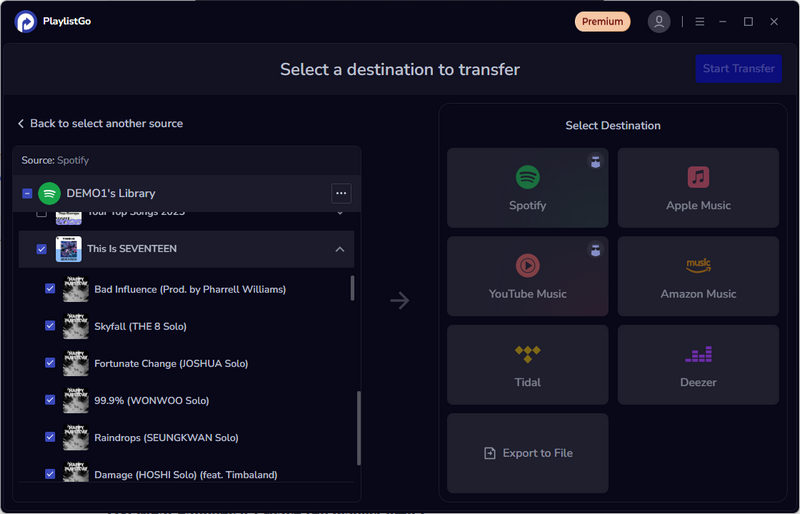
Step 3 Select your destination platform—Apple Music—and log into your account. Then, click "Start Transfer" to begin matching your songs.
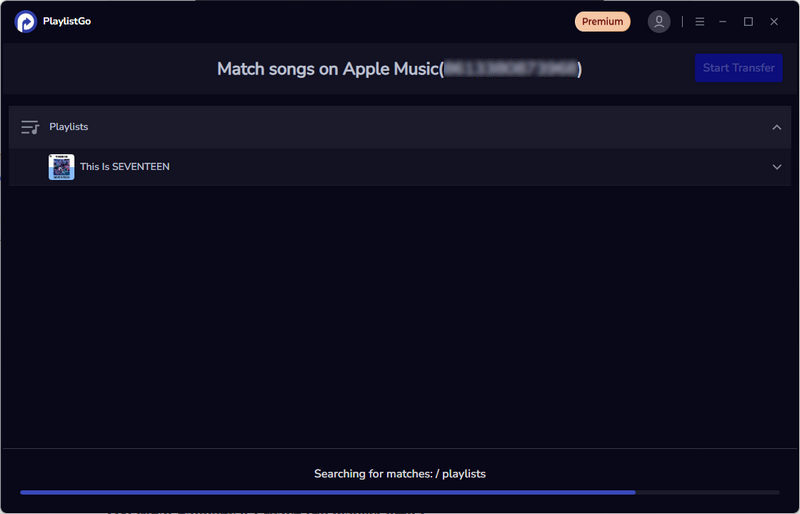
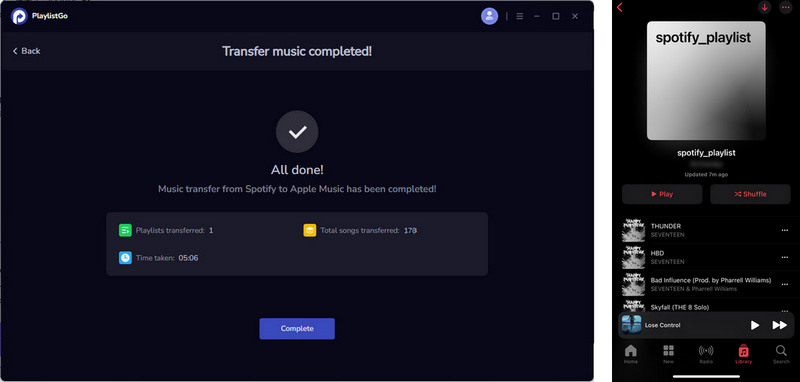
Step 4 Once matching is complete, click "Start Transfer" again to begin the transfer process.

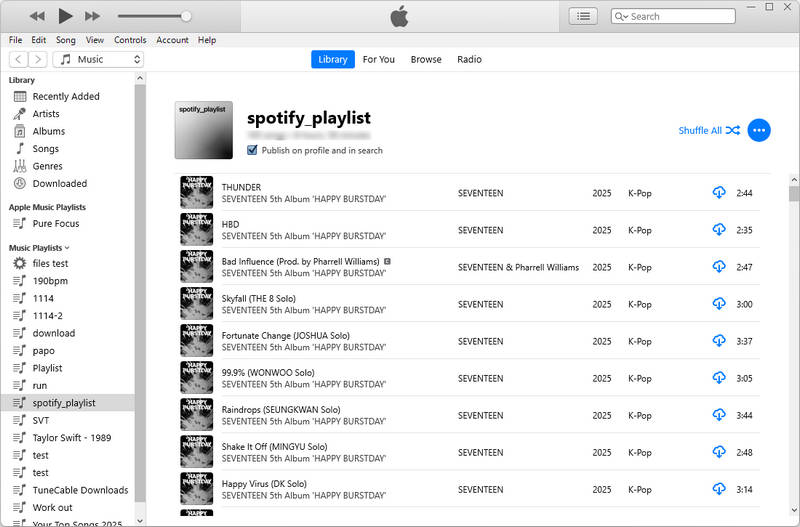
Step 5 After the transfer is finished, log into your target music platform (the iTunes app), you can find your transferred Spotify playlist in the music playlist section on the left side of the "Music" module and start playing it.
The other method requires you to firstly convert Spotify music to a format available for iTunes and secondly export the converted Spotifly playlists into iTunes. TuneCable Spotify Downloader has make it quite easy for music to go from Spotify to iTunes. It is developed to convert Spotify music to MP3, AAC, WAV, FLAC, AIFF, ALAC format. After that, you can one-click to export your Spotify playlists to iTunes. Before we walk you through the process for converting Spotify Music to AAC or other formats that are supported on iTunes, you need to download a TuneCable Spotify Downloader on your PC.
TuneCable Spotify Downloader
🔹 Download Spotify songs, playlists, albums, and podcasts.
🔹 Convert Spotify's music to MP3/AAC/WAV/FLAC/AIFF/ALAC.
🔹 Retain full ID3 tags & Spotify Lossless audio quality.
🔹 Run at 40x faster conversion speed & batch download.
🔹 Sort Spotify music files by playlist, artist, album, etc.
🔹 Offer tools (Format Converter, Tag Edit, etc.) & save lyrics.
🔹 Activate the permanent playback of Spotify music.
🔹 Support Spotify Free or Spotify Premium account.
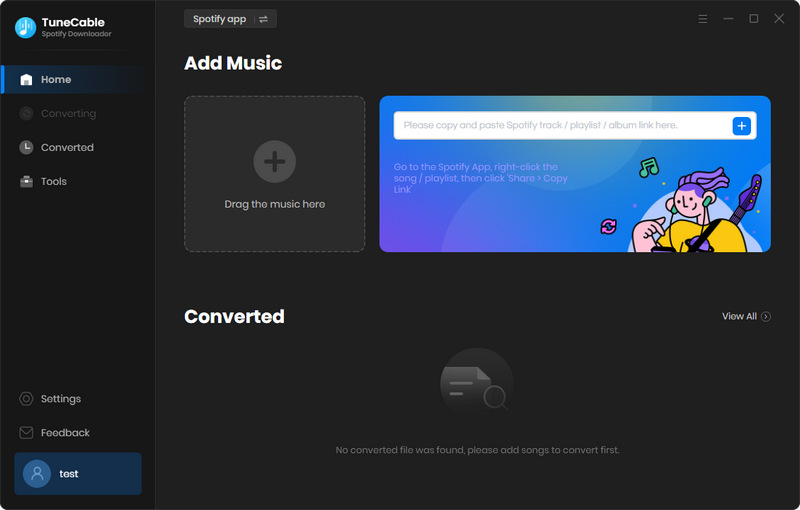
Step 1Launch TuneCable Spotify Downloader on your PC. Once you have chosen the "Spotify App", you will be prompted to "Drag & Drop" Spotify song or playlist to TuneCable" or "Copy and paste" the songs links to add songs into TuneCable. On you Spotify App, guide yourself to the playlist you want and right click on the playlist option with 3 dots then individually choose "Share" >> "Copy playlist link". Go back to the homepage of TuneCable and paste the links in to the fill. And then you can magically loaded your desired Spotify playlists into TuneCable Spotify Downloader.
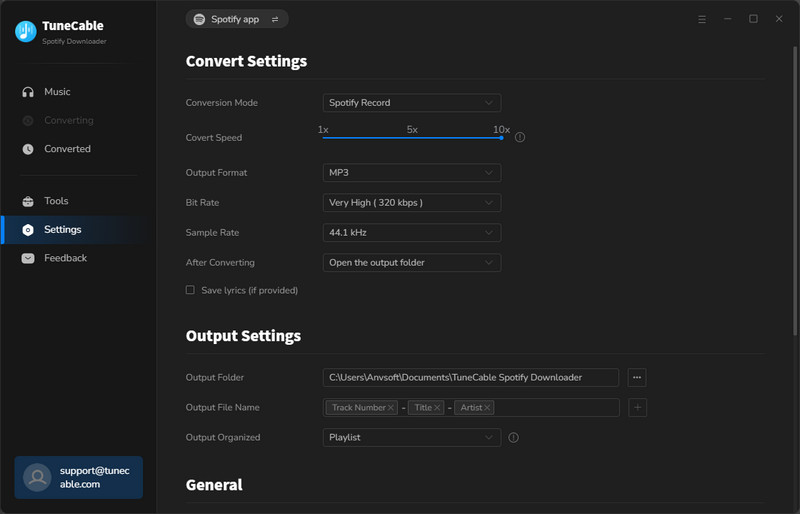
Step 2Personalize the Spotify music format before converting. Go to Settings memu where you are supposed to set the playlist output format as AAC instead of MP3. Meanwhile, you can personalize other settings based on your inclination.
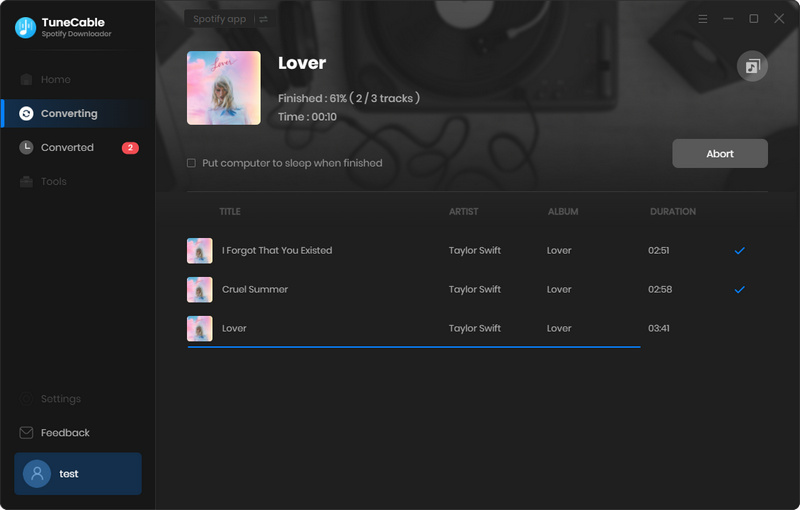
Step 3 Click on Convert button to start the process. When TuneCable is converting the Spotify playlists, do not run your Spotify at the same time. When all songs are completely downloaded, you can check them on the History session.
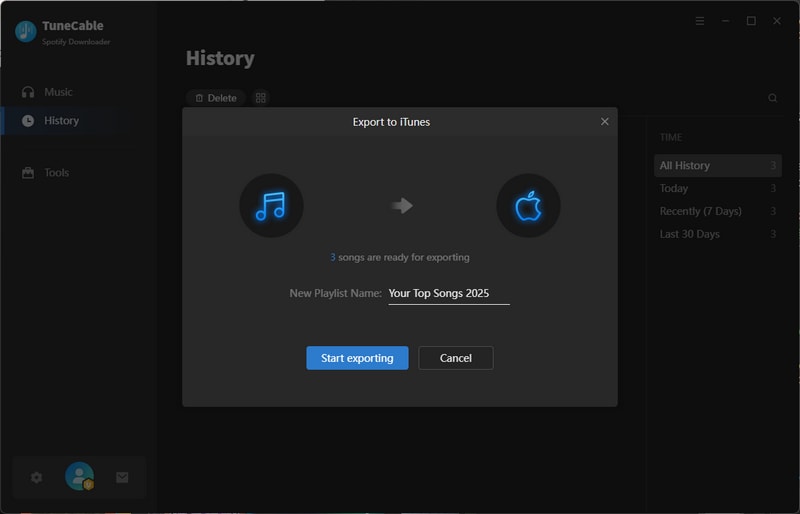
Now it's time for you to export Spotify playlist to iTunes. Go to the History session where you can check the completed playlists. Several functional options are provided to further manage your converted Spotify playlist. They are respectively Burn CD, Format Converter, Export to iTunes, etc. Choose all the completed songs and then click on Export to iTunes and then you just follow TuneCable on-screen instructions to proceed with the step.
Undoubtedly, TuneCable Spotify Downloader makes moving your Spotify playlists to iTunes simple and effortless. You can even sync the Spotify Music in iTunes to your iPhone, iPad and Apple watch.
In this article, we introduced two feasible methods for exporting Spotify playlists to iTunes. With the help of TuneCable Spotify Downloader or PlaylistGo, you can easily accomplish this task. In general, the former is ideal for users who want to listen to Spotify playlists offline, while the latter is perfect for those who want to transfer Spotify playlists online for cross-platform music listening. Now, choose a method that suits your needs and give it a try!
 What's next? Download TuneCable Spotify Downloader now!

Ava Morrison | Senior Writer

Converts Spotify Music, Playlists, Podcasts with lossless quality kept.

Download music tracks from Spotify, Amazon Music, Apple Music, YouTube Music, TIDAL, Deezer, etc.


